


Last Updated: November 8, 2026
Quick Summary
A secure remote work setup for employees combines company-managed devices where risk is highest, full-disk encryption, endpoint protection, automatic patching, multi-factor authentication and least-privilege access. Home network guidance and clear incident reporting channels close the remaining gaps.
- Choose company-managed devices for roles handling regulated or customer financial data.
- Enable full-disk encryption on every device and store recovery keys with IT.
- Require multi-factor authentication for email, cloud storage, VPN and administrative accounts.
- Configure automatic updates and set a deadline of days, not weeks, for critical patches.
- Give employees a single reporting channel that works outside office hours.
Table of Contents
- Why Remote Work Changes Your Security Risk
- The Main Threats Remote Employees Face
- Why Home Networks Are a Weak Point
- Choosing Company-Managed Devices Versus BYOD
- Provisioning and Securing Employee Devices
- Secure Remote Access for Employees
- Home Wi-Fi, Routers, and Password Hygiene
- Remote Work Security Checklist by Role
- Writing a Remote Work Cybersecurity Policy
- Onboarding, Offboarding, and Equipment Return
- Responding to Incidents From Remote Employees
- Set Up Your First Remote Security Baseline This Week
- Frequently Asked Questions
Why Remote Work Changes Your Security Risk
A secure remote work setup for employees is no longer a niche IT concern. When staff work from kitchen tables, coffee shops and hotel rooms, the network perimeter your office once provided disappears.
Remote work does not create entirely new threats. It widens the surface attackers can reach and removes the controls that quietly protected office staff. Devices now connect over networks the business does not manage, and employees often blend work and personal activity on the same machine.
The Main Threats Remote Employees Face
Most remote-work incidents trace back to a few recurring patterns:
- Phishing emails and fake login pages that harvest credentials from employees who are working alone and under time pressure
- Malware and ransomware delivered through downloaded files, malicious browser extensions or infected personal software
- Unsecured file sharing, where sensitive documents are emailed or synced to personal accounts
A common mistake is treating these as user-training problems alone. Training matters, but layered technical controls catch the mistakes training misses.
Why Home Networks Are a Weak Point
Home routers are often left on default passwords, run outdated firmware and host smart devices with weak security. Guest networks may share a segment with work laptops. None of this makes home work unsafe by definition, but it means the business should not assume the home network is protected.
Set expectations that employees keep routers updated, change default admin credentials and separate work devices from unvetted IoT equipment where possible as part of their remote work setup.
Choosing Company-Managed Devices Versus BYOD
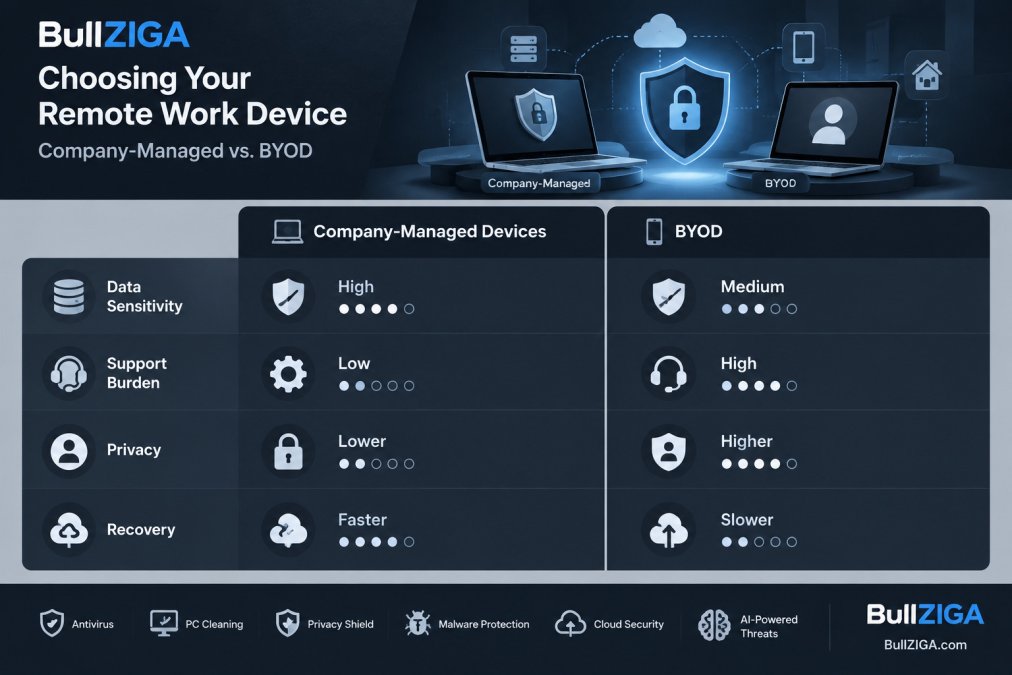
The device decision is the single choice that determines how much control IT has over everything else in this guide. Company-managed devices let IT enforce encryption, patching, endpoint protection and remote wipe centrally.
The decision is often easier when it is made per role rather than per company. A finance team handling customer payment data and an outside sales team checking email on the road do not carry the same risk, and treating them the same either over-controls one group or under-protects the other.
A Decision Framework You Can Apply by Role
Work through these questions for each role, not for the whole workforce:
- What data does the role touch? Regulated data, customer financial records, payroll and health information point toward company-managed devices. Public marketing content and general correspondence are lower risk.
- Does the role need local admin rights? Developers and designers often do; most administrative roles do not. Company-managed devices make it easier to grant elevated rights to the few people who need them.
- How often does the device leave the country or connect to untrusted networks? Frequent travel raises the value of remote wipe and centralized monitoring.
- Who owns the data if the device is lost? On a company device, IT can wipe the whole machine. On a personal device, the business usually can only remove the work container, which changes the recovery plan.
- What is the support burden? Company devices concentrate support in IT. BYOD spreads it across employees who may not know how to patch or encrypt their own machines.
A common pattern is a hybrid: company-managed laptops for high-risk roles, and a tightly specified BYOD program for lower-risk roles that still requires a current operating system, screen lock, full-disk encryption and an approved endpoint security product.
The Privacy Trade-Off Nobody Explains Well
BYOD sounds employee-friendly, but it creates a boundary problem.
The workable middle ground is containerization: work email, files and apps live in a managed profile that IT can wipe, while personal data stays outside that boundary.
Watch out: a BYOD policy that quietly expands monitoring beyond the work container is the fastest way to lose employee trust and invite a legal complaint, so involve HR and legal before rollout.
What Each Model Actually Costs You to Run
Company-managed devices carry upfront hardware cost and a refresh cycle, but they simplify compliance, patching and incident response because IT controls the build. BYOD shifts hardware cost to employees but adds verification work: someone has to confirm each personal device meets the minimum standard, recheck it after major operating system updates, and handle the awkward cases where an employee’s device fails the check.
For roles that handle regulated or customer financial data, company-managed devices remain the safer default. For lower-risk roles, a BYOD policy can work if it is documented, enforced and reviewed, not just announced.
Documenting the Choice
Write down which roles get which model, the minimum standards for personal devices, and the exceptions you have approved. An undocumented exception is invisible until an incident makes it visible. Review the split at least annually, because a role that was low-risk when you wrote the policy may not be low-risk a year later.
Provisioning and Securing Employee Devices
Provisioning is where a secure setup either begins or breaks down. An IT administrator should prepare each laptop before shipping, not after the employee has already started using it. The goal is a device that arrives with protections already active.
Work through the device build in this order:
- Remove unnecessary preinstalled software and set a standard image for each role
- Enable full-disk encryption and store recovery keys with IT
- Install endpoint protection and confirm it reports to the management console
- Apply all pending operating system and application updates
- Create a standard user account rather than an administrator account for daily work
Full-Disk Encryption and Endpoint Protection
Full-disk encryption protects data if a device is lost or stolen. Enable it on every machine and verify that recovery keys are escrowed, or you risk locking out your own staff. Endpoint protection then addresses malware, suspicious processes and ransomware behavior on the device itself.
Patching and Software Updates
Unpatched software remains one of the most exploited weaknesses in remote environments. Configure automatic updates for the operating system, browsers and widely used applications. Set a deadline for critical patches, typically within days rather than weeks, and track compliance through your management console.
Secure Remote Access for Employees
Employees need access to internal systems, shared drives and line-of-business applications from outside the office. The access method should limit what each person can reach and log what they do.
When a VPN for Remote Workers Is Worth Using
A VPN for remote workers encrypts traffic between the device and the company network, which matters most on public or untrusted Wi-Fi. It is worth using when staff access internal resources that are not already protected by cloud-based access controls.
Choose a VPN that supports your expected number of concurrent connections, since capacity limits often surprise growing teams. Test performance with real workloads before rollout.
Multi-Factor Authentication and Least-Privilege Access
Multi-factor authentication (MFA) blocks most credential-theft attacks, even when a password has been phished. Require MFA for email, cloud storage, VPN access and administrative accounts at minimum.
Pair MFA with least-privilege access: each employee receives only the permissions their role requires. Review access quarterly and remove accounts that are no longer needed.
Home Wi-Fi, Routers, and Password Hygiene
Give employees simple, specific guidance rather than a generic instruction to “secure your home network.” Useful steps include:
- Change the router’s default administrator password
- Enable WPA3 or WPA2 encryption on the Wi-Fi network
- Install firmware updates when the manufacturer releases them
Many teams find that a short, illustrated one-page guide gets better compliance than a long policy document.
Remote Work Security Checklist by Role
A single checklist rarely fits everyone. Tailor expectations by role:
Employees
- Enable MFA on all work accounts
- Use the company password manager for work logins
- Lock the screen when stepping away
IT Teams
- Confirm encryption and endpoint protection on every device
- Review admin accounts and remove unused privileges
- Verify patch compliance weekly
Managers
- Confirm new hires receive their device before their start date
- Ensure staff know who to contact about security concerns
- Approve access requests only for roles that need them
Expectations differ by role, so the checklist below assigns specific controls to employees, IT teams and managers.
| Role | Core control | Frequency |
|---|---|---|
| Employees | Enable MFA on all work accounts | Ongoing |
| Employees | Lock the screen when stepping away | Every time |
| IT Teams | Confirm encryption and endpoint protection on every device | Per device |
| IT Teams | Verify patch compliance | Weekly |
| IT Teams | Test the incident-reporting process | Twice a year |
| Managers | Confirm new hires receive devices | Before start date |
| Managers | Approve access only for roles that need it | Per request |
Writing a Remote Work Cybersecurity Policy
A written remote work cybersecurity policy turns good intentions into enforceable rules. It should cover approved devices, acceptable use, data handling, access requirements, reporting obligations and consequences for violations.
Keep the policy short enough that employees will read it. Pair it with the checklist above, and review it whenever tools or work patterns change. Involve HR and legal early if the policy affects monitoring or personal devices, since employee privacy rules vary by jurisdiction.
Onboarding, Offboarding, and Equipment Return
Security risk concentrates at the start and end of employment. During onboarding, provision accounts with least-privilege access, deliver a configured device and schedule security training before first access to sensitive data.
Offboarding should happen the same day an employee leaves. Disable accounts, revoke VPN and application access, collect devices and confirm return of company data. Track equipment shipped to remote staff, because unreturned laptops are a common source of data exposure.
Responding to Incidents From Remote Employees
When a remote employee suspects a compromise, speed and clarity matter more than a perfect process. Give staff a single reporting channel, such as a dedicated email address or hotline, and tell them to report immediately rather than wait to see whether a problem resolves.
The biggest failure in remote incident response is often not the technical recovery but the delay before anyone reports. Build the reporting habit before you need it.
Give Employees Concrete Playbooks, Not General Advice
General steps like “contain, assess, remove, recover, review” are useful for IT, but employees need instructions they can follow in the moment. Provide short, scenario-specific playbooks:
Lost or stolen device
- Report it to IT immediately through the hotline or email, even outside office hours.
- Change the password for any account signed in on the device from a different device.
- IT remotely locks and, if needed, wipes the device.
- If the device held regulated data, follow your organization’s breach-notification process.
Suspected phishing
- Do not click links or open attachments further.
- Forward the message to the security reporting address rather than replying to it.
- If credentials were entered, change the password and revoke active sessions.
- Watch for follow-on messages that reference the first one, since attackers often reuse a successful lure.
Suspected malware or unusual device behavior
- Disconnect the device from Wi-Fi and unplug any network cable.
- Do not attempt to clean it yourself unless IT asks you to.
- Report what you saw and when, including any file or link you opened.
- Wait for IT to confirm the device is clean before reconnecting.
Suspected account compromise
- Report it and change the password from a different, trusted device.
- Enable or re-check multi-factor authentication on the account.
- Review recent sign-in activity and connected apps for anything unfamiliar.
Reporting Outside Office Hours
Remote work blurs the line between work hours and personal time, and incidents do not wait for Monday. Publish an after-hours path that reaches a real person, not just a ticket queue.
Watch out: an after-hours channel that nobody monitors is worse than no channel at all, because employees learn that reporting does not work and stop doing it.
What IT Does After the Report
Once a report arrives, IT should follow a consistent sequence:
- Contain: Isolate the device from the network and disable the affected account.
- Assess: Determine what data or systems the device could access and whether the attacker reached anything else.
- Remove: Run endpoint scans, remove malware or unauthorized access, and revoke any tokens or sessions the attacker created.
- Recover: Restore the device from a clean image and reset credentials.
- Review: Document the cause, update controls to prevent recurrence, and brief the employee on what happened.
Ship a replacement device if the original cannot be verified clean, and keep backups current so recovery does not depend on the compromised machine. For businesses running managed endpoint detection and response, the containment and assessment steps can start automatically when an alert fires, which shortens the window between detection and response.
Practicing the Playbook
A playbook that has never been tested is a document, not a capability. Run a short tabletop exercise twice a year: pick a scenario such as a lost laptop or a phishing click, walk through who does what, and note where the process stalls.
Set Up Your First Remote Security Baseline This Week
You do not need to implement everything at once. Start with the controls that prevent the most common incidents:
- Enable MFA on email and VPN access
- Turn on full-disk encryption and endpoint protection for every device
- Configure automatic updates for operating systems and browsers
- Publish a one-page remote work security checklist
- Confirm employees know how to report suspicious activity
Once the baseline is in place, review it against the checklists and policy above each quarter. BullZIGA offers a free trial so teams can evaluate its endpoint protection on real remote devices before committing.
Secure remote work depends on controls that follow your employees wherever they log in. BullZIGA helps small and mid-sized businesses deploy endpoint protection, malware defense and identity safeguards without enterprise complexity.
Frequently Asked Questions
How would you secure remote access for employees?
Start by requiring multi-factor authentication on every account that touches company data, then route access through an encrypted connection such as a managed VPN or zero-trust access tool. Limit each employee to the systems their role needs, keep devices encrypted and patched, and review access when people change roles or leave. Log remote sessions so you can investigate unusual activity quickly. Most of these controls can be enabled from your existing identity or device management settings without new hardware.
What is the best setup for remote work?
A reliable setup combines a company-managed or enrolled laptop with full-disk encryption, endpoint protection, automatic updates, a password manager, and MFA on all work accounts. Employees should work on a secured home network with an updated router and a separate guest network for personal devices and smart gadgets. A managed VPN or secure access gateway covers connections to internal systems. Keep the setup standardized so IT can support it consistently across the team.
Should remote employees use a VPN to access company systems?
A VPN is useful when employees must reach internal file servers, legacy applications, or admin tools that are not exposed to the internet. It encrypts traffic over untrusted networks such as public Wi-Fi or shared home networks. However, a VPN alone is not enough, since it does not replace MFA, device health checks, or least-privilege access. Many teams use a VPN for internal resources and browser-based zero-trust access for cloud apps. Confirm your VPN has enough license capacity for peak usage.
What security policies should remote employees follow?
A remote work cybersecurity policy should cover approved devices, acceptable use, password and MFA requirements, data classification, file sharing rules, and how to report lost devices or suspicious emails. It should also state who may access what, how software updates are handled, and what physical security expectations apply at home, such as locking screens and keeping devices out of view. Review the policy annually and have employees acknowledge it in writing.
How can a business protect company data on employee devices?
Enforce full-disk encryption, require screen locks, and use device management to push updates and security settings. Endpoint protection with ransomware defenses helps stop malware before it encrypts shared files. Keep company data in managed cloud storage rather than local folders where possible, and configure automatic backups. Wipe or lock devices remotely when they are lost or when an employee leaves the company.
How should employees secure their home Wi-Fi for work?
Change the default router admin password, enable WPA3 or WPA2 encryption, and install firmware updates. Turn off remote administration and WPS if the router offers them. Put personal and smart-home devices on a guest network so they stay separate from work laptops. Use a unique passphrase for the Wi-Fi network and a password manager for other accounts.
Is a remote work security checklist enough for a small business?
A checklist is a strong starting point, especially for teams without a dedicated IT staff. It should cover device setup, encryption, MFA, VPN or secure access, software updates, backups, and incident reporting. A checklist alone does not enforce anything, so pair it with device management and an acceptable-use policy. Review it each quarter as tools and team roles change.
