


Last Updated: November 4, 2026
Quick Summary
To speed up a cluttered PC, first clear out junk files using the built-in Windows Storage settings, then uninstall programs you never use. Removing these files and apps frees room for your PC to work, which is the core reason a cluttered PC slows down.
- Open Storage settings in Windows to review temporary files and large folders.
- Delete files you no longer need, then empty the Recycle Bin.
- Uninstall unused programs, since forgotten software can still use memory.
- Only delete files you are sure about, and never remove system folders.
- Run a full scan first if you see pop-up ads or unknown startup programs.
Table of Contents
- Clear Out Junk Files and Unused Programs
- Signs Your PC Is Infected With Malware
- Tools to Optimize Windows Performance
- Frequently Asked Questions
Clear Out Junk Files and Unused Programs
A cluttered PC slows down because it has less room to work. Removing junk files and unused programs is a practical way to speed up a cluttered PC.
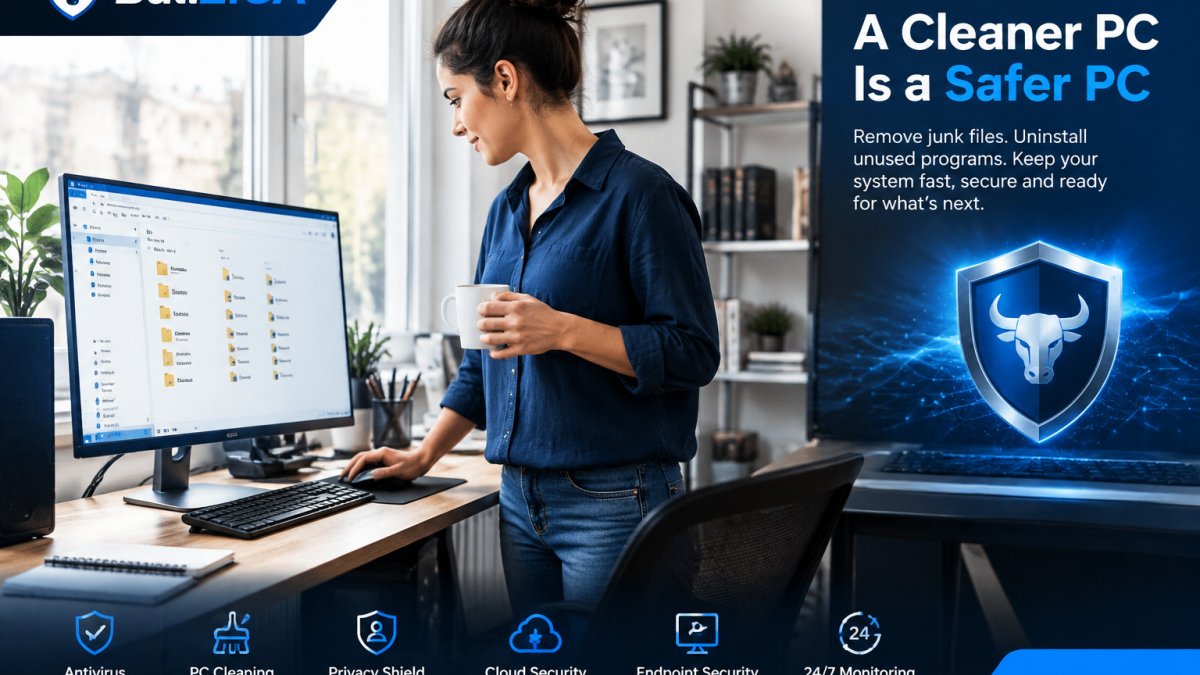
Start with the built-in tools. Open Storage settings in Windows, then review temporary files and large folders. Delete what you no longer need, and empty the Recycle Bin when you are done. A Microsoft’s guidance on freeing up disk space explains which Windows settings to check first.
Next, uninstall programs you never use. Software you forgot about can still run in the background and use memory. Review your installed apps list, and remove anything you do not recognize or need.
Watch out: Only delete files you are sure about. Never remove system folders or files you did not create.
For a deeper cleanup of files, see our PC Cleaning Utility.
The article’s core steps for clearing clutter come down to a few actions you can run through in order.
| Step | What to do | Note |
|---|---|---|
| Check Storage settings | Review temporary files and large folders | Built-in Windows tool |
| Delete unneeded files | Remove files you no longer need | Only delete files you are sure about |
| Empty Recycle Bin | Clear deleted files permanently | Final step of the file cleanup |
| Uninstall unused programs | Remove apps you never use | Unused software can use memory |
| Review installed apps | Check for apps you do not recognize | Remove anything you do not need |
Signs Your PC Is Infected With Malware
Sometimes a slow PC is not just clutter. Malware can also drain resources. Common signs include pop-up ads, unknown programs in your startup list, and sudden drops in speed. If you see these, run a full scan before you clean anything else.
A CISA guidance on recognizing malware symptoms lists unexpected slowdowns and strange browser behavior as warning signs worth checking.
If you suspect infection, our Anti Malware protection can run automated scans to detect and remove threats.
Tools to Optimize Windows Performance
Once junk and threats are removed, a few built-in tools can help. Disable unneeded startup programs so Windows boots faster. Keep your system and drivers updated, since updates often include speed and stability fixes.
Security software should not slow your PC down. Check whether your antivirus runs scans in the background without freezing your work. Learn whether antivirus software slows a PC.
Last Updated: November 4, 2026
Frequently Asked Questions
How do I clear clutter on my PC?
Start by deleting temporary files, emptying the Recycle Bin, and uninstalling programs you no longer use from the Windows settings list. Next, move large personal files such as photos and videos to external storage or cloud storage to free space on the C drive. Clearing your browser cache and cookies also helps. Restart the computer afterward and check whether applications open faster. Work in small batches so you do not delete anything you still need, and keep a backup of important files before removing anything significant.
Can a cluttered PC be a sign of a malware infection?
Yes. Malware often uses system resources in the background, so a PC that suddenly slows down, shows unexpected pop-ups, or runs hot even when idle may be infected. Run a full scan with a trusted security tool. Check the startup list for programs you do not recognize, and avoid disabling your security software while you investigate.
Is it bad to leave your PC on 24/7?
Leaving a PC on continuously is not automatically harmful, but it can accumulate background processes and temporary files that slow performance over time. Restarting regularly clears memory and applies pending updates. If you keep the computer running, schedule a periodic restart and a routine cleanup so clutter does not build up between sessions.
