


Last Updated: November 5, 2026
Quick Summary
To clean up Windows PC performance, start by removing temporary files and emptying the Recycle Bin, then clear your browser cache. Next, disable unneeded startup programs in Task Manager and free up space on your C drive. Finally, run a full malware scan and restart your computer.
- Use Storage settings or Disk Cleanup to clear temporary files, and only remove items flagged as safe.
- Clear browser cache from your browser’s privacy settings to recover stored browsing data.
- Disable unneeded startup apps in Task Manager to reduce background load.
- Keep the C drive from filling up by moving photos and videos to an external drive or cloud storage.
- Run a full scan with a trusted security tool, since malware can quietly consume CPU and memory.
Table of Contents
- How to Clean Up Computer to Run Faster on Windows 11 and Windows 10
- How to Free Up Space on C Drive
- How to Scan a PC for Malware and Finish Your Cleanup
- Frequently Asked Questions
How to Clean Up Computer to Run Faster on Windows 11 and Windows 10
A sluggish Windows PC usually has a few clear causes: too many startup programs, full storage, leftover junk files, and background software competing for resources. If you are wondering whether your security software is the reason, learn why security software can slow down your computer before changing anything. To clean up Windows PC performance, work step by step, starting with quick wins that give the fastest visible improvement.
Clear temporary files with Storage settings or Disk Cleanup, then empty the Recycle Bin. Browser cache is another common drain, so clear it from your browser’s privacy settings.
Deleting files from system folders can break programs, so when you clean up Windows PC storage, only remove items the cleanup tool flags as safe.
The table below summarises the main steps to speed up a sluggish Windows PC, with the tool or action for each.
| Step | What to do | Tool or location |
|---|---|---|
| Clear temporary files | Remove flagged junk files | Storage settings or Disk Cleanup |
| Empty the Recycle Bin | Permanently delete discarded files | Recycle Bin |
| Clear browser cache | Remove stored browsing data | Browser privacy settings |
| Limit startup programs | Disable unneeded startup apps | Task Manager |
| Free up C drive space | Remove large downloads and old installers | Storage settings |
| Move personal files | Store photos and videos elsewhere | External drive or cloud storage |
How to Free Up Space on C Drive
A nearly full C drive slows Windows because it needs free space for virtual memory and updates. Free up space by removing large downloads, old installers, and unneeded files; Storage settings show which folders take the most room.
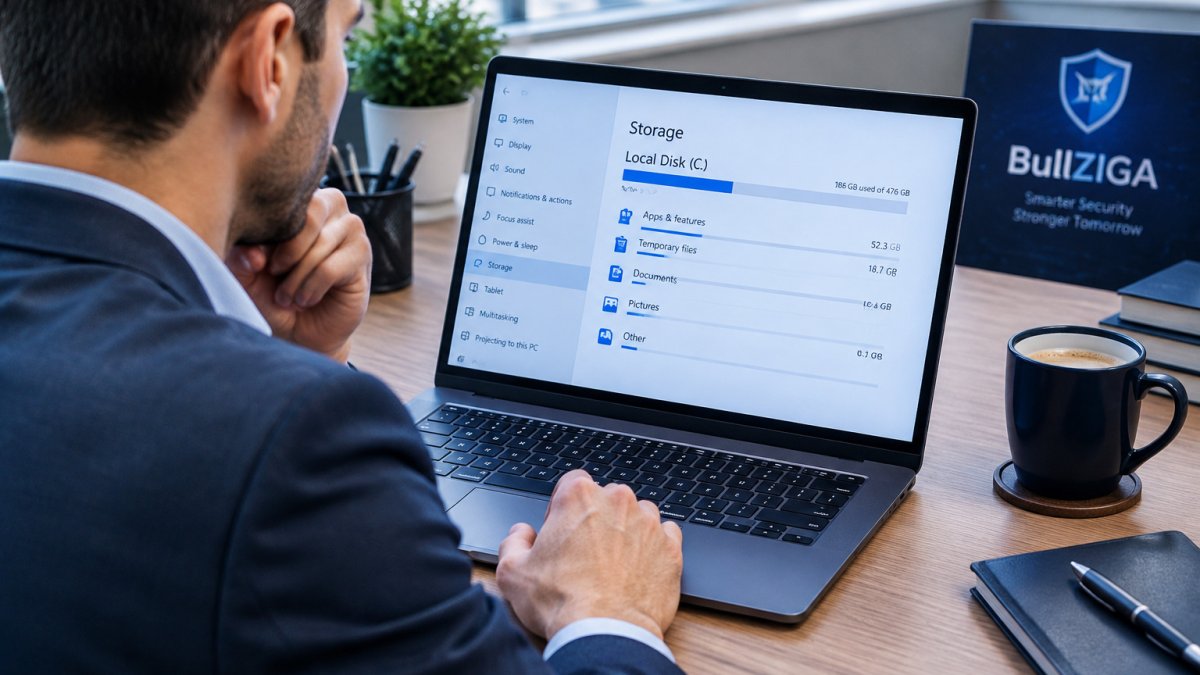
Move personal files like photos and videos to an external drive or cloud storage to keep your local disk responsive.
For a deeper look at how security software affects speed, read our guide on Does Antivirus Software Slow Down Your PC? Our BullZIGA PC Cleaning Utility helps reclaim disk space with the BullZIGA Antivirus + Privacy Shield + PC Cleaning Utility bundle.
How to Scan a PC for Malware and Finish Your Cleanup
Malware can quietly use CPU and memory, so a slow PC is sometimes an infected one. Run a full scan with a trusted security tool after your cleanup. Microsoft Defender security guidance
BullZIGA Antivirus is designed to detect and remove viruses, malware, and spyware. Once the scan finishes, restart your PC and check whether it feels faster.
If you are unsure whether your computer is infected, read Is My PC Infected With Malware? to learn the warning signs.
Frequently Asked Questions
Is it safe to delete temporary files in Windows?
Yes. Temporary files are created by apps and the system to hold data briefly, and Windows regenerates what it needs. Deleting them frees storage and can reduce clutter. Close open programs before cleaning, and avoid deleting folders you do not recognize, since those may belong to installed software.
Can malware make a Windows PC run slowly?
Yes. Malware often runs background processes that consume CPU, memory and disk resources, which makes a PC feel sluggish. Running a full malware scan with a trusted security tool such as BullZIGA Antivirus can identify and remove these threats. If the slowdown continues after cleaning, scan the PC before making other changes.
Why is my C drive so full?
C drive usage usually grows from large downloads, cached update files, old program data and browser storage. Check Settings > System > Storage to see which categories take the most space, then remove unused apps and clear temporary files. Keeping at least 15 to 20 percent of the drive free helps Windows run smoothly.
Ready to keep your PC clean and protected? Get started with BullZIGA to combine antivirus protection, deep malware scanning, and PC cleaning in one tool.
