


Last Updated: October 27, 2026
Quick Summary
Your PC infected with malware usually shows a cluster of clues, not one symptom: pop-ups when the browser is closed, a changed homepage, sudden slowdown, or security software switched off without your input. Disconnect from the internet, back up important files, then run a full scan with Microsoft Defender and a second-opinion scanner.
- One odd symptom means little; three or four appearing over days deserve a scan.
- Disconnect from the internet first to stop data theft and block remote control.
- A full scan can take one to three hours on a modern laptop.
- Run a quick scan weekly and a full scan monthly, or any time something feels off.
- If the same threat returns within hours of removal, treat it as a serious incident.
Table of Contents
- Signs of Malware on a Computer: What’s Real and What’s Coincidence
- Safe First Steps Before You Scan
- How to Scan PC for Malware With Built-In and Second-Opinion Tools
- How to Remove Malware From Windows and Verify the Cleanup
- How Often to Run a Virus Scan
- Get 24/7 Protection With BullZIGA
- Frequently Asked Questions
Signs of Malware on a Computer: What’s Real and What’s Coincidence
Wondering “is my PC infected with malware” is stressful, but most slow computers are not infected. Real malware leaves a pattern of clues, not a single symptom.
A malware infection is unauthorized software running on your device to steal data, spy on activity, or damage files.
The key is pattern recognition. One odd symptom means little. Three or four together, appearing over days, deserve a scan.
Symptoms That Point to an Infection
Watch for clusters of these warning signs:
- Pop-ups appearing when your browser is closed
- New toolbars or a changed homepage you never set
- A search engine that redirects to strange sites
The strongest signal is sudden change. A PC that was fine last week and is chaotic today is more suspicious than one that has crept along slowly for two years.
Symptoms That Usually Aren’t Malware
Plenty of ordinary problems get blamed on viruses:
- Gradual slowdown from a full drive or too many startup apps
- Typing glitches caused by a sticky keyboard or a bad driver
- Browser changes made by a family member or a sync account
If your only complaint is that an old laptop feels tired, start with a cleanup. If files are locked or strangers are logging into your accounts, treat it as a real threat. For locked or encrypted files, Ransomware Defender scans, detects, and protects against ransomware.
Safe First Steps Before You Scan
Before you run anything, protect your data and accounts. These steps take minutes and prevent a bad situation from getting worse.
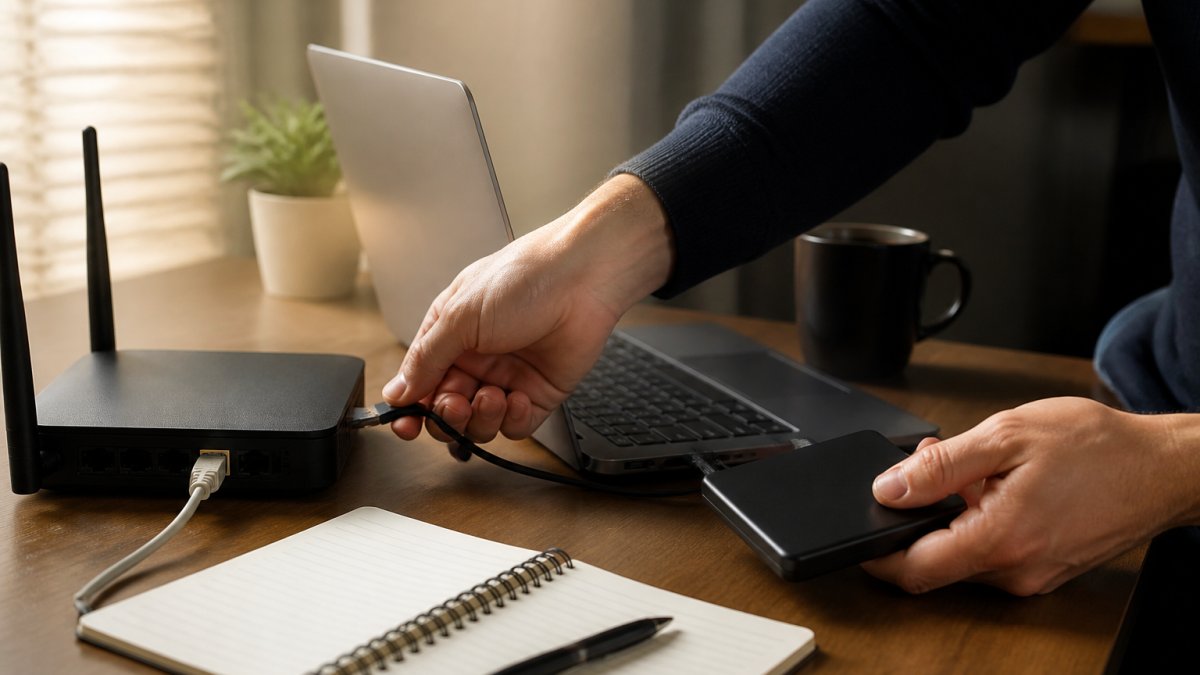
- Disconnect from the internet. Pull the Wi-Fi or unplug the cable. This stops data theft and blocks remote control.
- Back up important files to an external drive you can wipe later. Do not back up programs.
- Write down what changed and when. This helps you judge scan results later.
- Do not enter passwords on the machine until it is cleaned.
- Unplug external drives so malware cannot spread to them.
From another device, change your email and banking passwords and enable two-factor authentication wherever offered.
How to Scan PC for Malware With Built-In and Second-Opinion Tools
Learning how to scan PC for malware starts with the tool already on your machine. On Windows, Microsoft Defender (formerly Windows Defender) is a capable, free antivirus most people never open (I was told Microsoft defender was automatically built into windows 11, is that true?).
Here is the Windows process in detail:
- Open Windows Security from the Start menu.
- Select Virus & threat protection.
- Choose Scan options.
- Pick Quick scan for a fast check of memory, startup items, and common folders.
- Pick Full scan to check every file on the drive.
- Pick Microsoft Defender Offline scan when you suspect a rootkit or a threat that keeps returning, this reboots the PC into a clean environment before scanning (Microsoft Defender Offline scan in Windows – Microsoft Defender for Endpoint).
- Start the scan and leave the PC on and plugged in. A full scan can take one to three hours on a modern laptop and longer on older hardware.
For a second opinion, download a reputable free malware scanner from its official site and run it alongside your main tool. Well-known options include Malwarebytes Free, Kaspersky Virus Removal Tool, and ESET Online Scanner.
Running a Full Scan vs. a Quick Scan
A quick scan checks memory, startup items, and common folders in minutes and catches most active threats. A full scan reads every file, takes hours, and is the right choice when you have real symptoms. Run a quick scan weekly and a full scan monthly, or any time something feels off. A Microsoft Defender Offline scan is the escalation step when a normal scan keeps finding the same threat or the scanner closes itself mid-run.
What to Do If a Scan Freezes or Fails
A security scan that freezes, closes, or refuses to start is itself a clue. Malware sometimes blocks scanners on purpose. Work through these steps in order:
- Note where it stopped. The file or folder name on screen tells a technician where to look.
- Restart in Safe Mode. On Windows 11, hold Shift while selecting Restart from the Start menu, then choose Troubleshoot > Advanced options > Startup Settings > Restart and pick Safe Mode. Scanners run more reliably when third-party drivers are not loaded.
- Run the Microsoft Defender Offline scan from Windows Security > Virus & threat protection > Scan options. It runs before Windows loads and bypasses most blocking tricks.
- Try a second-opinion scanner from a USB drive if the installed tool will not launch.
- Check for a full disk or a failed update. A drive with almost no free space, or a Windows update stuck mid-install, can make a scan appear frozen when it is simply waiting.
If the scan still fails, treat the machine as possibly compromised and move to the removal and escalation guidance below rather than repeating the same scan. If you need help with installation, upgrades, or removal steps, Customer Support offers support resources and direct help from our team.
How to Remove Malware From Windows and Verify the Cleanup
Removal is straightforward when your scanner finds something, but the harder question is whether the cleanup actually worked. Most guides stop at “click remove and restart.” The steps below go further: how to read results, confirm the device is clean, and decide when to escalate.
Step 1: Read the Scan Results Before You Act
Scan results fall into three buckets, each needing a different response:
- Confirmed threats (labeled virus, Trojan, worm, spyware, ransomware): quarantine or remove. These are the clear cases.
- Potentially unwanted programs (PUPs): often bundled toolbars, adware, or “optimizers.” Quarantine first and read the name. Removing a PUP is usually safe, but a program you actually use can be mislabeled.
- Unresolved or “requires restart” items: the scanner found something but could not remove it in place. Restart and rescan before assuming failure.
Write down the exact threat names. If the same name returns after cleanup, that signals a persistent infection rather than a one-off download.
Step 2: Remove, Restart, and Rescan
- Choose quarantine or remove for confirmed threats. Quarantine is reversible; delete is not.
- Restart the PC when prompted. Many removals only complete after a reboot.
- Run the same scan again. A clean second scan is the first real sign of success.
- Run a second-opinion scanner (Malwarebytes Free, ESET Online Scanner, or similar) to catch what the first engine missed.
- Check Startup apps (Task Manager > Startup) and browser extensions for leftovers the scanner did not flag.
- Reconnect to the internet and update security software and Windows before doing anything else.
Step 3: Verify the Device Is Actually Clean
A single clean scan is not proof. Confirm with a short observation period:
- Watch for three to five days. Returning pop-ups, browser redirects, or the same threat name in a rescan mean the cleanup failed.
- Check account activity. Review recent sign-ins for your email, bank, and social accounts from a different device. Unknown sessions or password-change alerts suggest credential theft that a file scan will not fix.
- Review browser settings. Confirm the homepage, default search engine, and extensions are what you set, not what the malware left behind.
If the same threat returns within hours of removal, or if files are encrypted and a ransom note appears, stop scanning and treat it as a serious incident. Repeated detection is the clearest sign that self-service cleanup is not working.
Step 4: Know When to Escalate
Self-service removal has limits. Escalate to professional help or a full OS reinstall when any of these are true:
- The infection returns after two full cleanup attempts.
- A rootkit, bootkit, or ransomware is detected. These survive normal removal and often require an offline scan or a reinstall.
- The PC will not boot, will not complete a scan, or crashes during cleanup.
A full reinstall, backing up personal files, wiping the drive, and reinstalling Windows from Microsoft’s official media, is the last resort, but the most reliable reset when a Trojan or rootkit refuses to leave.
Removal is only half the job. Reading the results, rescanning after a reboot, watching for returning symptoms, and knowing when to reinstall or call for help is what separates a real cleanup from a temporary fix.
How Often to Run a Virus Scan
A sensible schedule beats constant scanning. Here is what we recommend:
| Scan Type | How Often | Time Cost | Best For |
|---|---|---|---|
| Quick scan | Weekly | Minutes | Catching active threats |
| Full scan | Monthly | 1-3 hours | Deep checks, after symptoms |
| Second-opinion scan | Quarterly | Varies | Catching what your main tool missed |
| Extra scan | After any suspicious download or email | Varies | Closing the gap fast |
Safe browsing habits matter more than scan frequency. Avoid cracked software, unknown email attachments, and pop-up download buttons. Keep Windows and your anti-malware tool updated, since new malicious software appears daily.
Get 24/7 Protection With BullZIGA
Signs of malware on a computer are easy to miss, and cleanup only solves today’s problem. The real gap is tomorrow, when a new threat arrives while nobody is watching.
That is where BullZIGA fits. Our anti-malware protection provides 24/7 malware protection. Our antivirus provides advanced antivirus protection, while performance tools optimize PC performance.
You can start a free trial.
Frequently Asked Questions
How do I know if there’s malware on my computer?
Look for a cluster of symptoms rather than one: unexpected slowdowns, pop-ups you didn’t trigger, browser homepage or search engine changes you didn’t make, unfamiliar programs in the startup list, and antivirus or security settings that switch off on their own. If several of these appear together over days, treat it as a likely infection and run a full scan. A single slow morning or one update glitch is not proof your PC is infected.
Can a slow computer be a sign of malware?
Yes, but slowdown alone is weak evidence. Malware such as miners and Trojans consume CPU and memory, so performance drops, yet low storage space, too many startup apps, and pending updates cause the same effect. Check Task Manager for processes using high resources, free up disk space, then run a full security scan. If performance stays poor after cleanup, the cause is likely hardware or software bloat, not malware.
How often should I run a virus scan on Windows?
Run a quick scan weekly and a full scan monthly as a baseline. Increase frequency if you download software often, open email attachments from unknown senders, or share the device with family. Real-time protection should stay on between scans so threats are caught as they arrive. After any suspicious pop-up, unexpected browser change, or slow-down that won’t clear, run an immediate full scan rather than waiting for the scheduled one.
What should I do if my PC is infected and I think my accounts were accessed?
Disconnect from the network first, then scan and remove the threat. From a different, clean device, change passwords for email, banking, and work accounts, starting with the email address used for password resets. Enable two-factor authentication everywhere it’s offered, check account recovery details for changes you didn’t make, and review recent sign-ins. If business data or credentials were exposed, tell your IT provider or security team the same day.
If your PC keeps showing the same symptoms after cleanup, guessing is not a strategy. Get real-time protection in place with BullZIGA, run a full scan, and let automated defense handle the threats you never see. Get started with BullZIGA and keep your devices clean, fast, and protected around the clock.
